How to Integrate Pivott with Microsoft Dynamics: A Technical Tutorial

Adam Cowley
CEO
Key takeaways
- Business Central uses Configuration Packages to template your data for import — set up once, reuse every month.
- The Excel template exported from MS Dynamics contains hidden XML components and cannot simply be copied into another spreadsheet.
- Dynamics SL accepts CSV files instead of Excel, with a specific Level0/Level1/Level4 hierarchy that controls how checks are generated.
- After implementing Pivott, a single CSV export replaces what was previously 200+ manual check calculations per month.
In our recent Microsoft Dynamics case study, we covered how Pivott's integration with Microsoft Dynamics simplified and automated our customer's contract management process. Microsoft Dynamics is a powerful accounting tool, but it's not commonly used in commercial real estate, and it's unusual to issue vendor checks without invoices. To address these challenges, we developed integrations for both the Business Central and SL versions of Microsoft Dynamics. Here's how we did it.
Integration for Microsoft Dynamics 365 Business Central
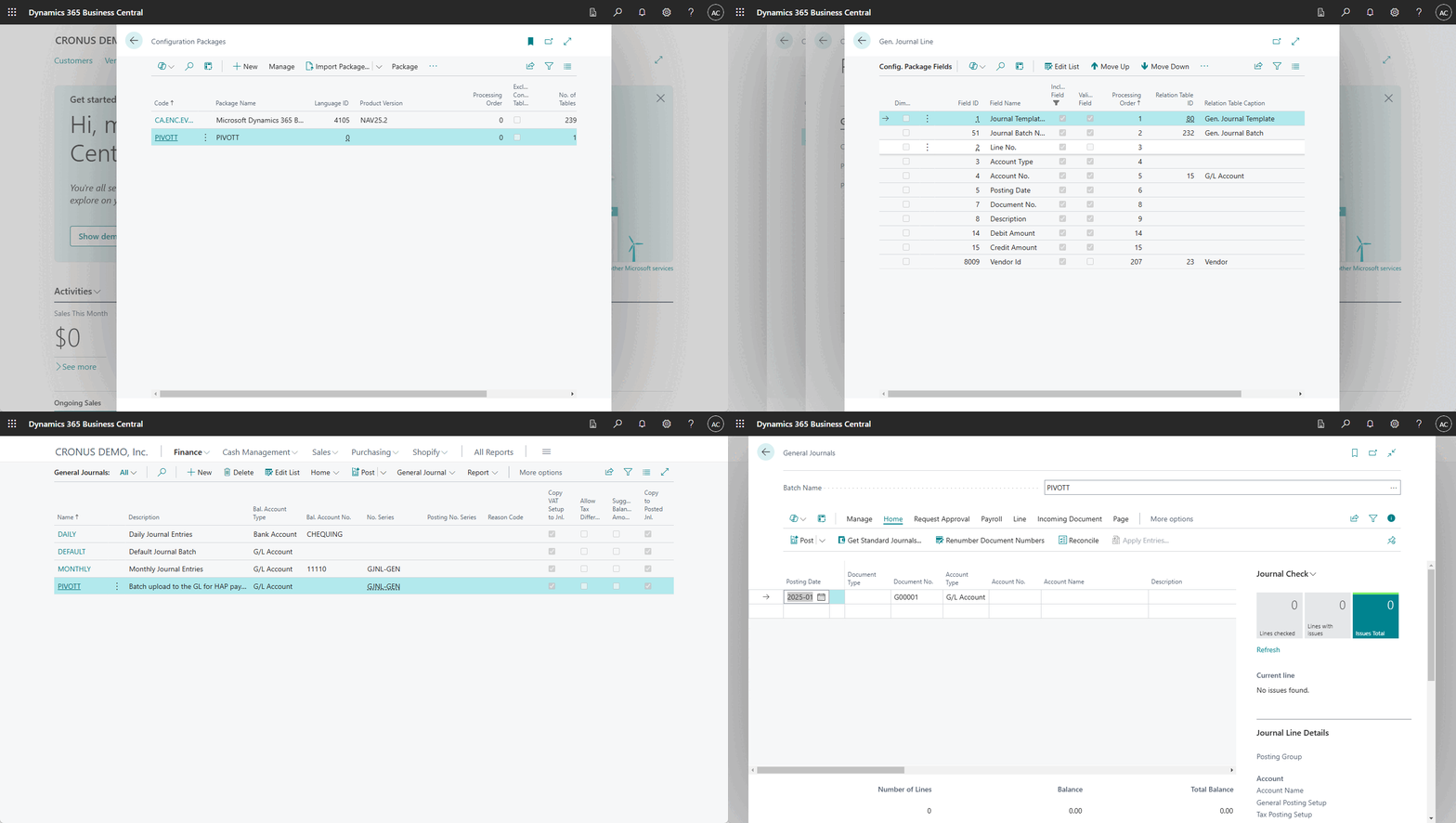
Pivott's MS Dynamics 365 Business Central integration uses Configuration Packages to template your data for import. Once set up, these packages can be easily reused. While Configuration Packages are highly customizable, they can also be complex — we're here to help with the setup process.
Configuration Package setup
Pivott is designed to be flexible and adapt to your MS Dynamics configuration. We recommend choosing your preferred import setup, and Pivott will align with it. Here's how to do it:
- Click 🔍 and type "Configuration Packages," then click the link with the same name.
- Click New.
- Name both the Code and Package Name fields something simple, like "Pivott."
- In the first row, enter the Table ID for the GL account you typically use for journal entries. Since MS Dynamics can be configured many ways, consult your administrator here.
- Adjust the Number of Fields Available and Number of Fields Included to match the data in Pivott.
- Click Export to Excel (see next steps below).
These steps only need to be completed once.
MS Dynamics Excel template
The exported Excel file should be shared with Pivott for configuration. This file tells us exactly what MS Dynamics expects in the import. Include only the fields that Pivott can provide.
Important: The Excel file contains hidden XML components that are not visible. You cannot simply copy and paste the fields into a different spreadsheet — the file itself must be used.
Importing Pivott's data into MS Dynamics
Based on the Excel template you provided, Pivott exports data in the same format. Here's how to import it into the Configuration Package you created:
- Click 🔍 and type "Configuration Packages," then click the link.
- Select "Pivott" (or the name you assigned earlier).
- Click Import from Excel and upload the file from Pivott.
- Click Apply Package — but don't stop here, keep going.
- Close all windows related to Configuration Packages.
- Navigate to Finance > General Journal.
- Click Pivott.
- Preview the journal entries to confirm they look correct.
- Click Post.
Repeat this process each month or whenever you have new data to upload.
Integration for Microsoft Dynamics SL
Uploading general ledger or accounts payable entries to Dynamics SL is simpler but less user-friendly compared to Business Central. It also requires an administrator to activate the necessary modules.
Unlike Business Central, Dynamics SL accepts files in CSV format, not Excel. In our example, we created a single CSV file that instructs Dynamics SL to generate around 200 check payments each month. Here's a simplified example using two landscaping vendors.
The before picture
Before Pivott, someone had to manually calculate the amount owed to each vendor — after applying credits — every single month. This process was repeated over 200 times per month and consumed a significant portion of the team's time during the first half of each month.
Implementing Pivott
Pivott used a combination of AI and human verification to import all spreadsheets, contracts, and financial records into the software — including building the vendor directory from a single import. The customer only needed to verify the data and attend training sessions on how to make updates going forward.
Maintaining data
Things change regularly: vendors are added or removed, credits and rebates fluctuate, and properties are updated monthly. Pivott supports two user groups to handle this: view-only users who can answer their own questions, and administrators who handle daily and weekly updates. Rather than each department manager maintaining their own spreadsheet, Pivott standardizes the process across the organization.
After Pivott
At the end of each month, a single CSV file is exported from Pivott and uploaded to Dynamics SL — completely eliminating the need for manual calculations.
CSV format
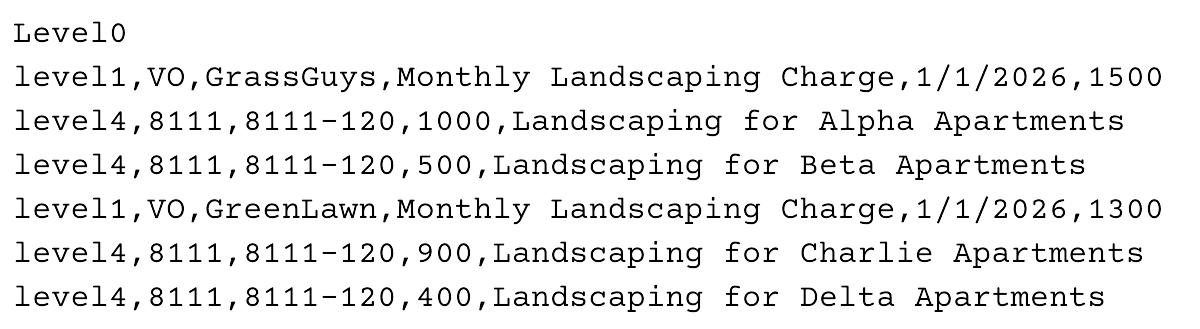
The CSV follows a specific hierarchy:
- Exactly 1 header line at the top that reads
Level0 - One line per check marked as
Level1 - One line per sub-category on that check marked as
Level4(optional) VOdenotes an AP Voucher;GLdenotes a General Ledger journal entry
Additional columns for vendor codes, sub-accounts, descriptions, dates, and other fields can be configured depending on your Dynamics SL implementation.
CSV example
Say you need to queue two checks:
- A check to GrassGuys for $1,500:
- $1,100 for services at Alpha Apartments
- $500 for services at Beta Apartments
- A $100 credit with GrassGuys
- A check to GreenLawn for $1,300:
- $900 for services at Alpha Apartments
- $450 for services at Beta Apartments
- A $50 rebate with GreenLawn
Uploading the CSV to Dynamics SL
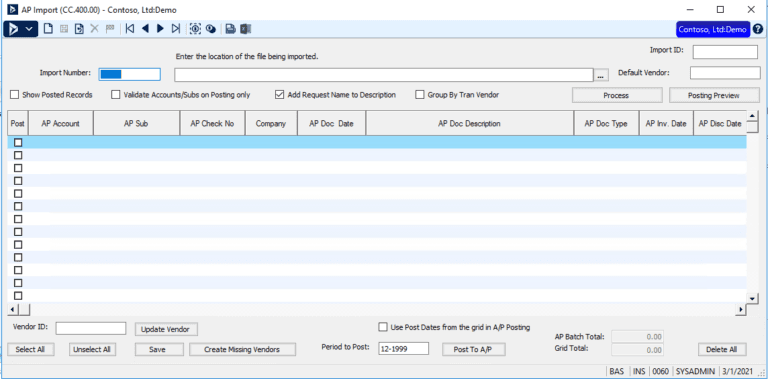
This single CSV file is uploaded to Dynamics SL, which automatically generates checks based on the number of Level1 entries. Consult your Dynamics administrator for access to this upload feature — it is not enabled by default.
Integrating Pivott with Microsoft Dynamics — whether through Business Central or Dynamics SL — streamlines the vendor payment process and significantly reduces manual effort. By automating check generation and leveraging flexible data formats, Pivott ensures your accounting processes are both efficient and scalable. As vendor information changes, Pivott handles the updates so your team can focus on higher-priority work.
Need help with the integration? Get in touch with our team.
Ready to automate?
See how Pivott helps multifamily teams manage contracts, compliance, and vendor documents in one place.
Book a Demo